 Train simulator · Official website
About this informationThese answers come from the original official website. System requirements may change; check the latest Steam information and try the demo before purchasing.
PC specifications
Will it run on a low-spec PC?
Integrated graphics tend to produce low frame rates, around 5–10 fps.
A gaming PC is recommended.
A demo is available on the Steam store page so you can check performance on your PC.
What are the recommended specifications?
Windows 10 64-bit
NVIDIA GTX1060 (6GB VRAM or more)
Intel Core i7-10700K 3.80GHz
16GB RAM
The game crashes when I try to start driving.
Your PC may not have enough system memory or graphics memory (VRAM).
A graphics card with at least 6GB of VRAM is recommended.
I bought the game, but my PC cannot run it. Can I get a refund?
Steam's standard refund policy for games covers requests made within two weeks of purchase with less than two hours of playtime. See Steam's policy below for the full conditions and details on submitting a request.
Does it run on Mac, Linux or smartphones?
The developer does not currently own Mac or Linux systems and cannot build executables or provide sufficient support for them, so the game is Windows-only.
Smartphone hardware is also considered insufficient for the game, and no smartphone version is planned.
Can I use a controller?
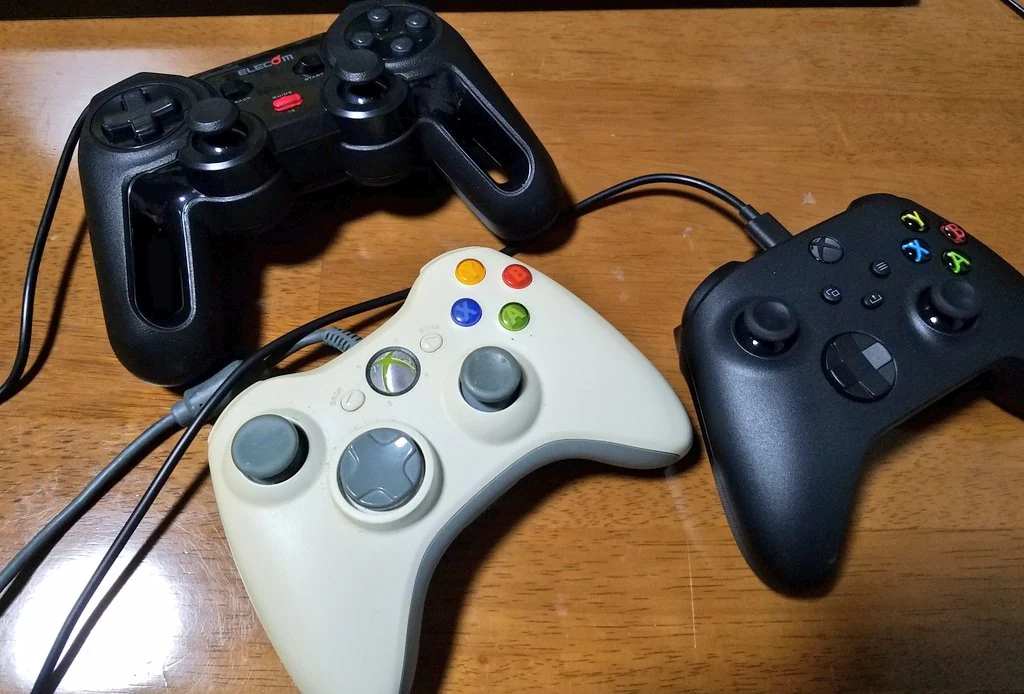
The BVE controller (OHC-PC01) and XInput controllers, such as the Xbox 360 controller, are supported.
You can also play with a keyboard and mouse.
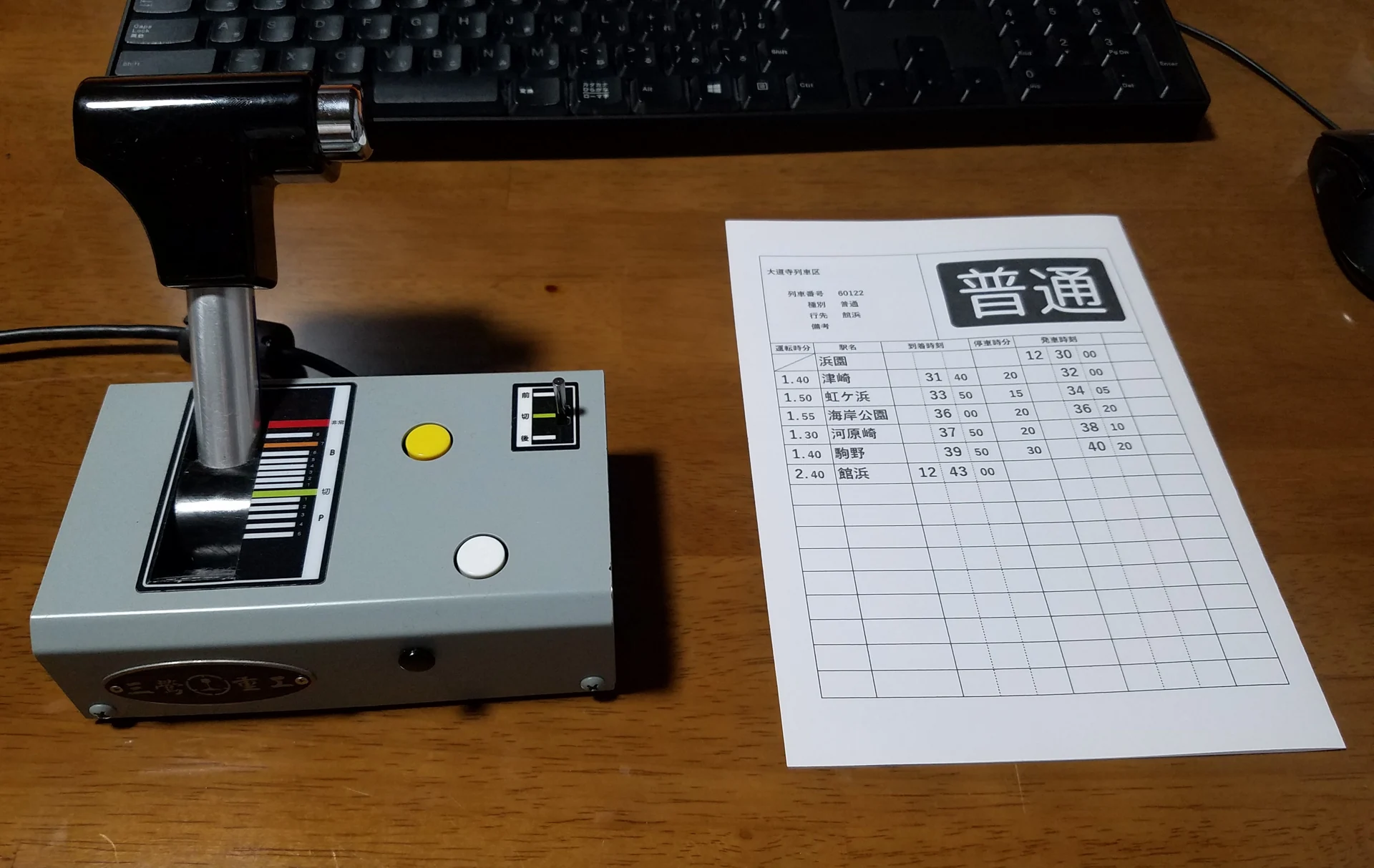
Can I use Zuiki's Densha de GO!! one-handle controller for Nintendo Switch™?
Support has been implemented, although it is not officially endorsed by Zuiki Inc.
This controller is a Nintendo Switch product. Please do not contact Zuiki Inc. about using it with TRAIN CREW.
Connect it to your PC by USB. It should be recognized as a joystick; then launch TRAIN CREW.
If it does not work correctly
Check that Steam Input is disabled. The controller will not work correctly with it enabled.
To disable Steam Input for TRAIN CREW only:
• Right-click TRAIN CREW in your Steam Library.
• Select Properties.
• Open the Controller tab.
• If Enable Steam Input is selected, change it to Disable Steam Input.
You can also try the third-party input software described below.
Third-party input software
For Zuiki's Densha de GO!! one-handle controller for Nintendo Switch™ (ZKNS-001 / ZKNS-002)
TRAIN CREW supports ZKNS-001 by default, although this support is not officially endorsed by Zuiki.
Try this software only if the controller handle does not respond.
https://github.com/YuzuRyo61/ZDG-TC © 2022 Yuzulia / YuzuRyo61
My supported controller is not recognized.
If you disconnected or reconnected the controller while playing, restarting the game with the controller connected may resolve the problem.
In-game issues
The game runs slowly.
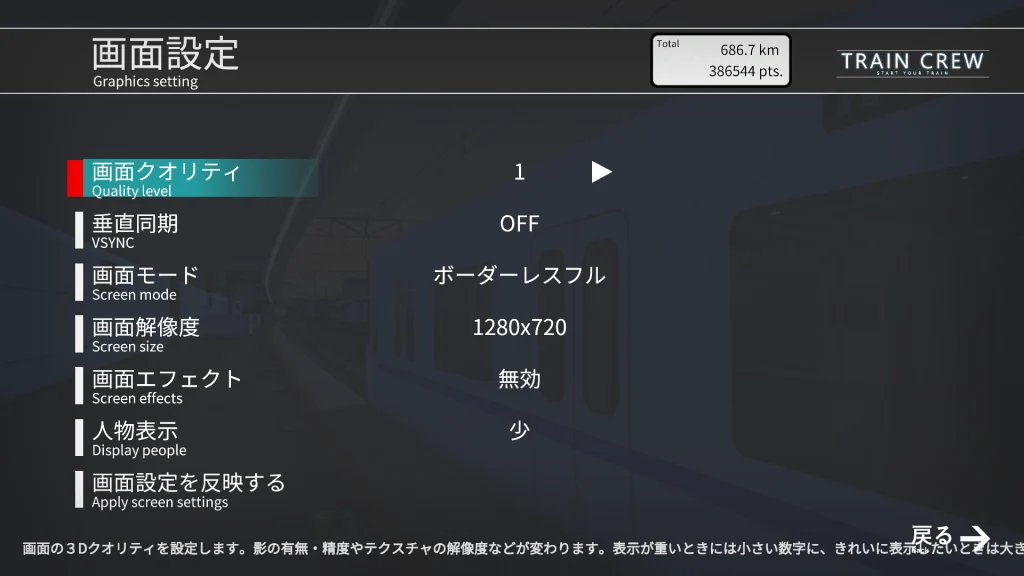
Try the following under Settings > Screen Settings. You do not need to change everything; adjust the options to suit your PC.
• Lower the graphics quality value.
This reduces visual quality, for example by removing shadows, but may improve performance by reducing the rendering workload.
• Turn VSync off.
If the image appears to split or flicker across the screen, try Full (60fps) or Half (30fps).
• Lower the screen resolution.
• Disable screen effects.
• Reduce character display to Few, Crew Only or None.
Then select Apply Screen Settings and press Enter to apply your changes.
Also,
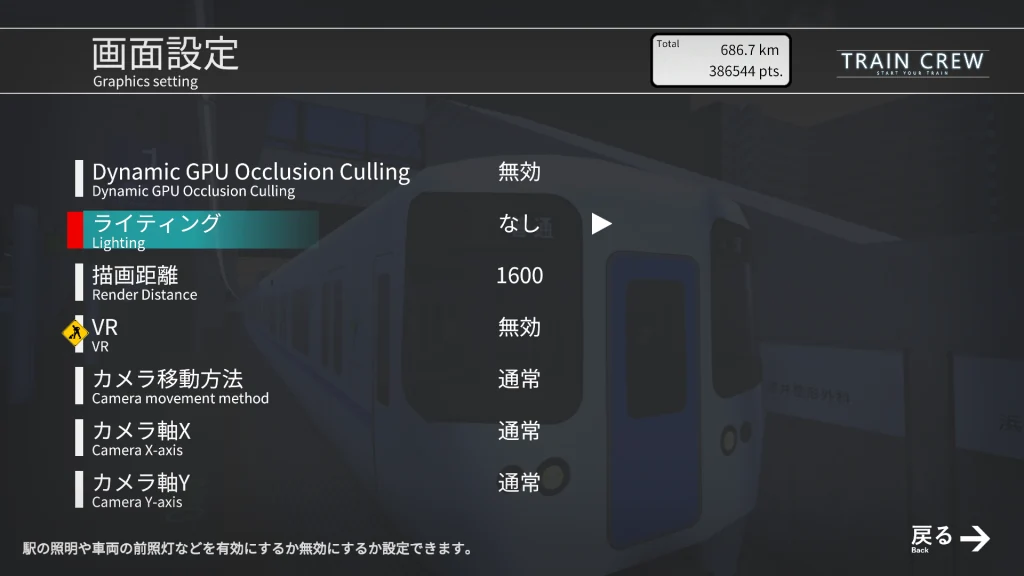
setting Lighting to None in Screen Settings 2 can reduce the lighting workload.
Dynamic GPU Occusion Culling was implemented to reduce rendering workload, but it is not recommended because it can affect the rendered image.
The camera keeps spinning while driving.
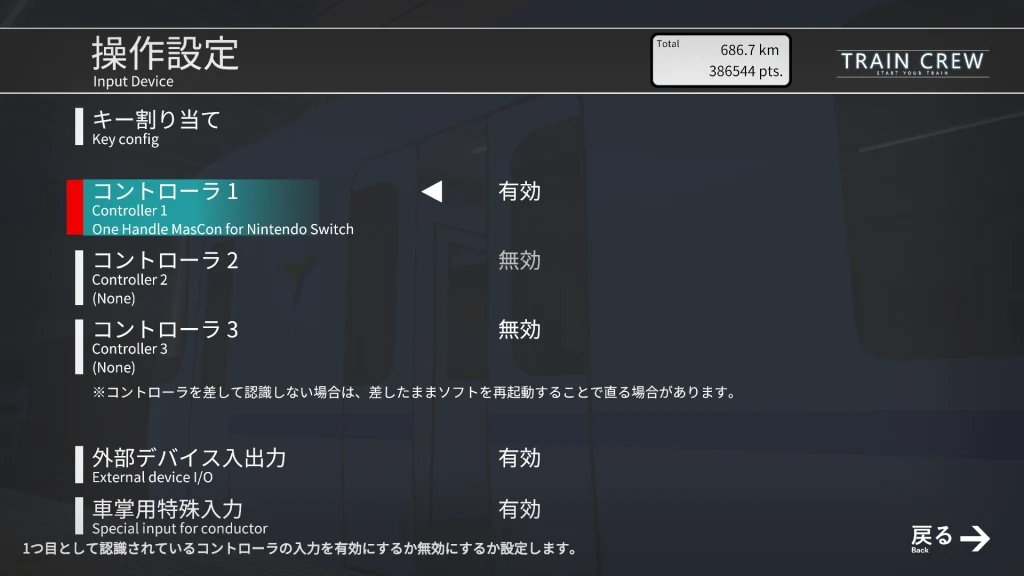
In Settings, open the controller/input options and
disable any unused controller in Controller 1 or Controller 2. This may resolve the problem.
There is too much shaking while driving.
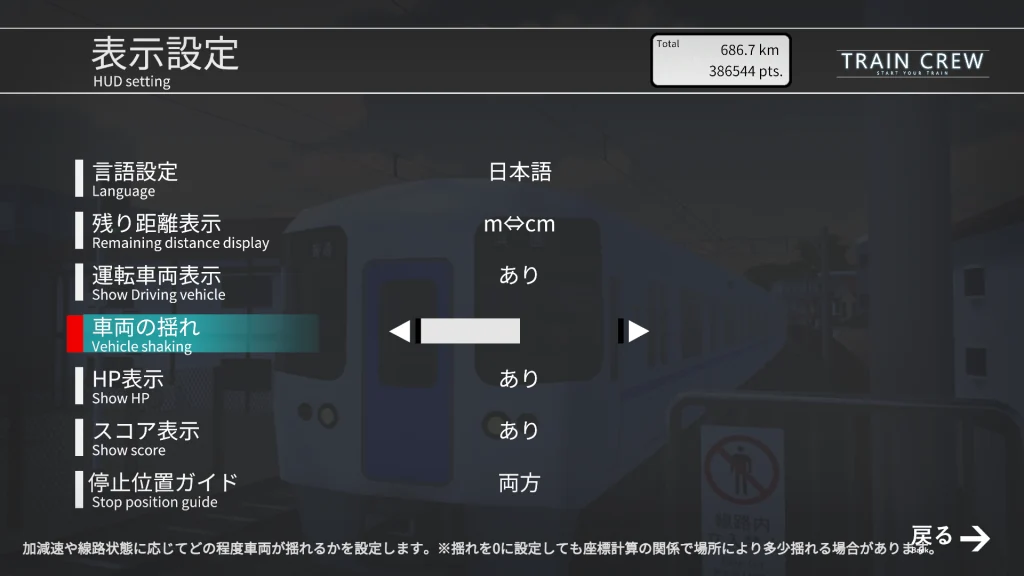
In the display/HUD settings, find the train sway control and
reduce the value to lessen the shaking. Due to coordinate calculations, it may not be possible to remove it completely.
The Back button on the settings screen does not respond.
Security software is likely to be blocking file writes. Excluding TrainCrew.exe from real-time scanning, for example, may resolve these symptoms.
The results screen does not appear after reaching the terminus.
Security software is likely to be blocking file writes. Excluding TrainCrew.exe from real-time scanning, for example, may resolve these symptoms.
How can I skip the opening video?
Press Enter or another supported skip key.